Create Cute Profile Pictures: Cartoon vs Sketch vs AI Portrait Styles
A cute profile picture starts with the right style. This guide compares cartoon, sketch, and AI portraits to help you create a clear, expressive avatar for any platform.
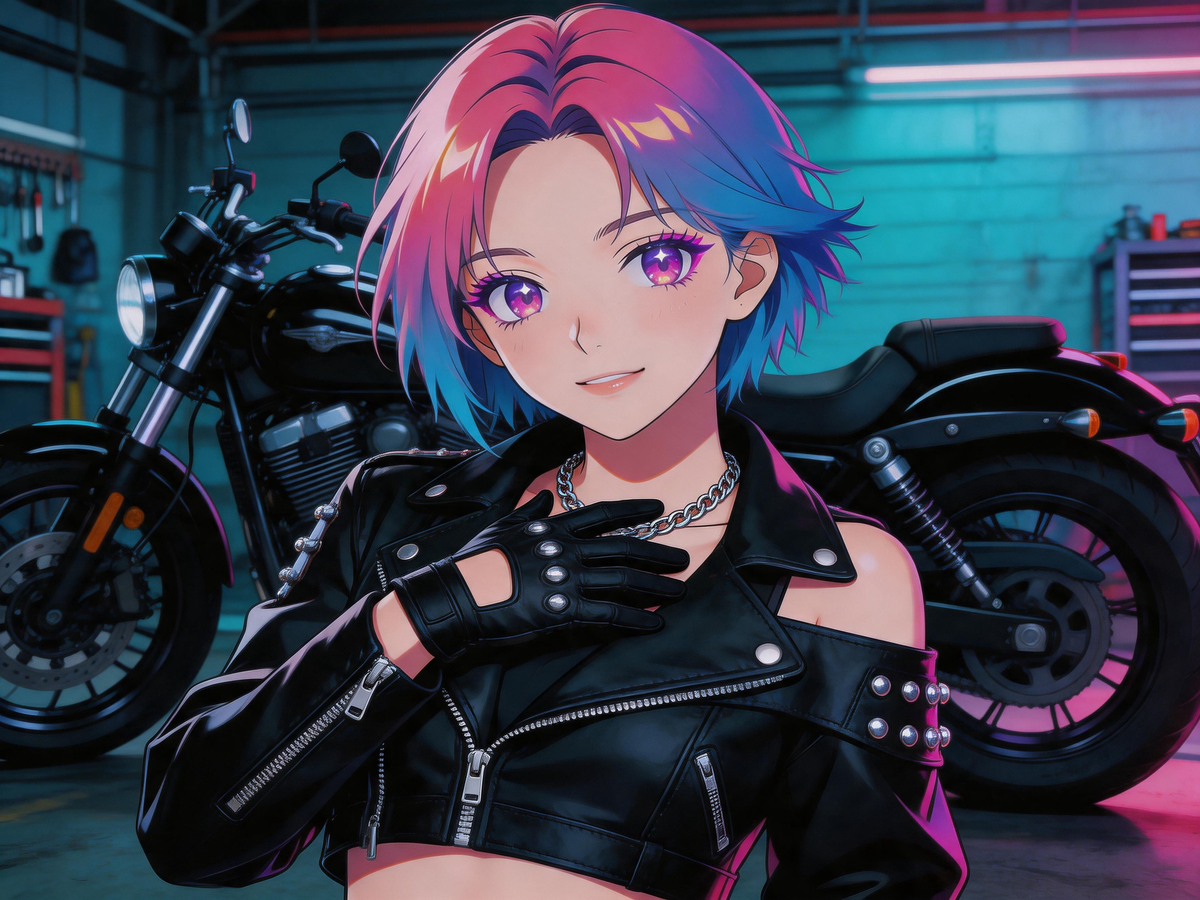
A cute profile picture can make your account feel approachable in seconds. The hard part is not finding a filter—it is picking a style that matches your brand, your audience, and the platform where the avatar will live. Cartoon, sketch, and AI portrait looks all work for profile photos, but they send very different signals.
This guide compares three practical options side by side: Image to Cartoon, Image to Sketch, and Vheer for AI-driven portrait styles. None of these tools depends on the others. You choose one direction, upload a photo, and export the result that fits your channel best.
What Makes a Profile Picture “Cute” (and Readable at Small Sizes)
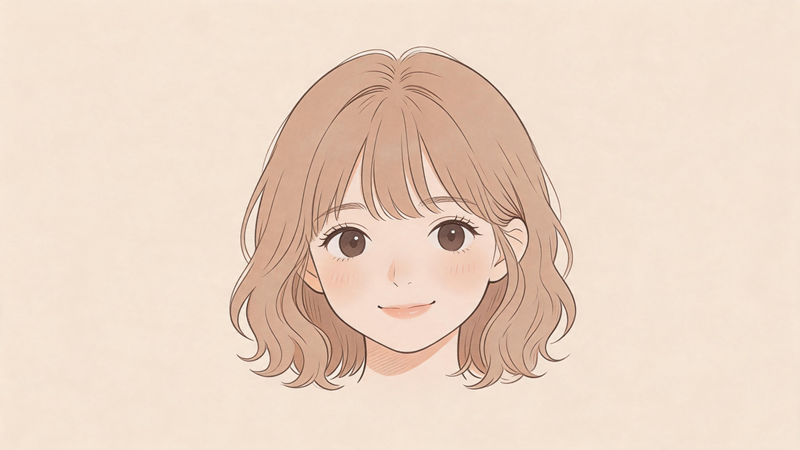
Cute avatars usually share a few traits: clear facial features, simple shapes, friendly expression, and enough contrast to stay visible at thumbnail size. Busy backgrounds, tiny details, and muddy shadows disappear when platforms crop your image to a circle.
Before you pick a tool, decide what “cute” means for you:
- Playful and colorful → cartoon styles often win
- Artistic and understated → sketch styles feel more personal
- Stylized but flexible → AI portrait generators offer broader creative range
Your goal is not the most dramatic effect. It is a recognizable you—or your brand mascot—at 48×48 pixels.
Quick Comparison: Three Style Paths
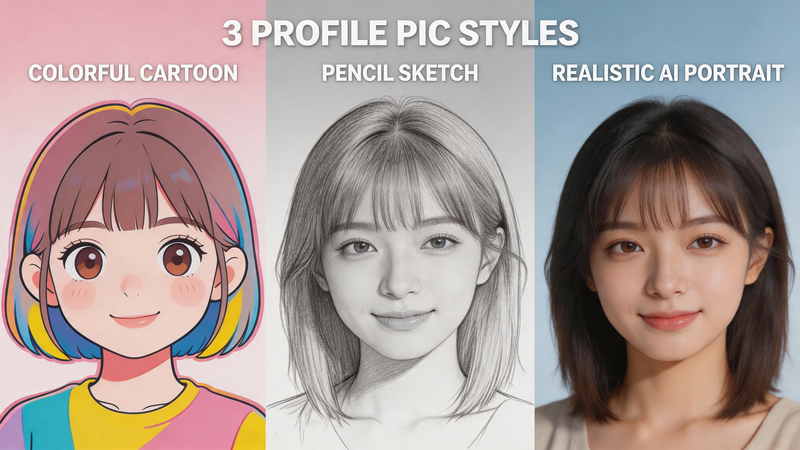
These are alternatives, not steps in a pipeline. Pick the column that matches your audience, then test one photo across tools if you are still unsure.
Image to Cartoon: Bold, Friendly, Instantly Recognizable
Cartoon avatars turn photos into simplified characters with smooth color blocks and expressive outlines. They read well on dark and light UI themes, which is why streamers, community managers, and hobby accounts use them so often.
What Is an Image to Cartoon?
Image to Cartoon is a web tool that converts a portrait or selfie into a cartoon-style image. You upload a photo, choose or apply a cartoon effect, and download a stylized version suited for profile pictures, stickers, or small brand icons. It focuses on one job—photo to cartoon—without asking you to learn complex editing software. Results tend to look cheerful and uniform, which helps when you want a consistent avatar across multiple platforms.
When Cartoon Works Best
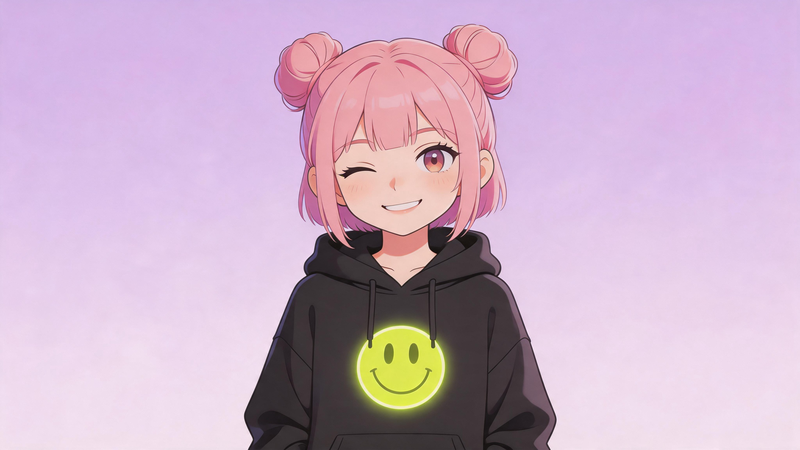
Cartoon styles shine when you want energy and clarity over realism. They suit gaming profiles, fan communities, youth-oriented brands, and anywhere a literal photo feels too formal. If your current headshot looks stiff in a circle crop, cartoon simplification often fixes that by emphasizing eyes, hair shape, and expression.
Create Cute Profile Pictures with ImagetoCartoon
Step 1: Upload Your Image
Go to the Image to Cartoon homepage.
You’ll see an upload box on the main interface.
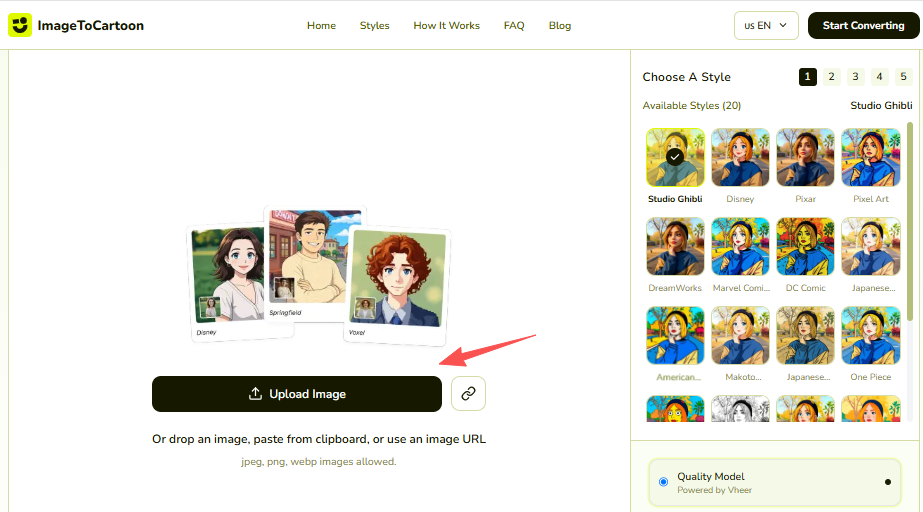
- Click “Upload Image”
- Select a photo from your device (portraits work best)
- Wait a few seconds for the image to upload
💡 Tip: Use a clear, high-quality image for better results.
Step 2: Choose Your Cartoon Style
Once your image is uploaded, you’ll see editing options on the right side of the screen.
Select your preferred animation style. Popular options include:
- Japanese Ukiyo-e
- One Piece
- Studio Ghibli
- Disney
- DC Comic
- Makoto Shinkai
- Pixar
- American Cartoon
- Pixel Art
- And more
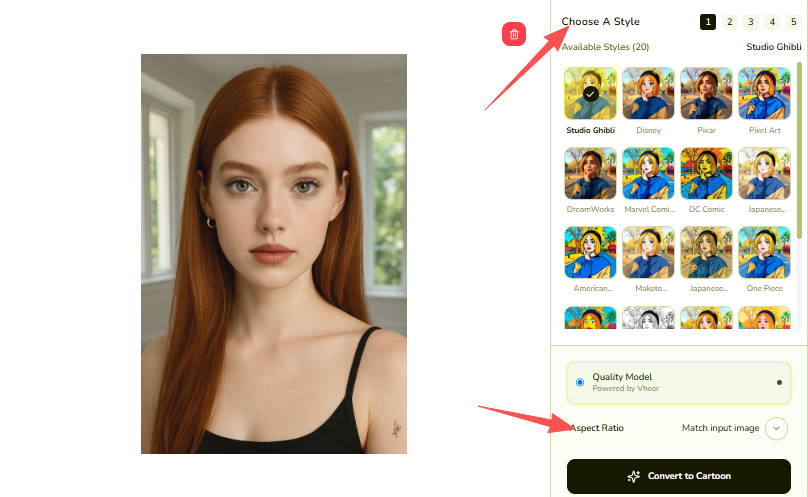
Step 3: Adjust the Aspect Ratio
Before generating your cartoon, choose the output image size (Aspect Ratio).
Common options include:
- Square (1:1) for social media profiles
- Portrait (4:5) for Instagram posts
- Landscape (16:9) for thumbnails or banners
Selecting the right ratio ensures your final image fits your intended use.
Step 4: Convert to Cartoon
After selecting your style and dimensions:
- Click “Convert to Cartoon”
- Wait a few seconds while the AI processes your image
The system will automatically generate your cartoon version.
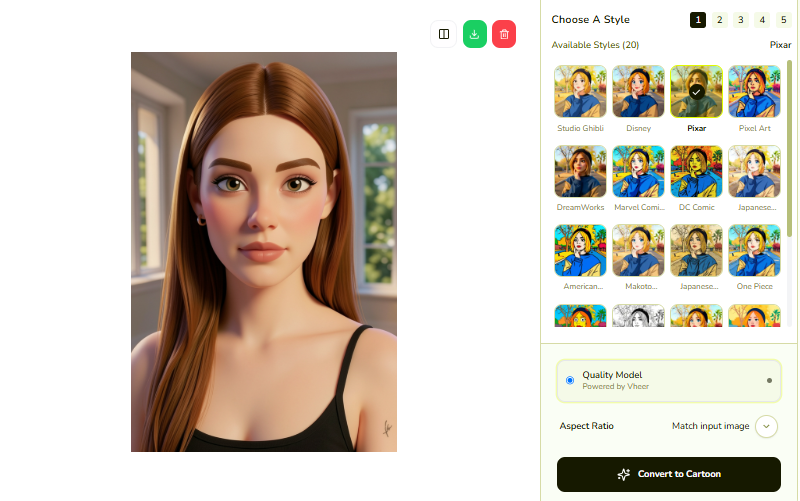
Step 5: Download Your Cartoon Image
Once the conversion is complete:
- Look at the left-hand preview panel
- Click the download icon in the upper-right corner of the image
- Save the image to your device
Limitations to Expect
Fine skin texture and subtle makeup details may flatten. If your brand depends on photorealistic trust—finance, law, executive coaching—a heavy cartoon filter might feel off-brand. In those cases, compare the sketch or AI portrait options below before committing.
Image to Sketch: Artistic, Calm, and Slightly More “Human”
Sketch avatars keep more of the original portrait structure while adding hand-drawn texture. The cute factor comes from softness and craft, not from saturated color.
What Is Image to Sketch?
Image to Sketch converts photos into sketch artwork—often pencil, charcoal, or ink-like lines. It is built for users who want an artistic profile image without hiring an illustrator. Upload a clear portrait, apply the sketch effect, and export a file ready for social avatars or shop branding. The output usually feels quieter than cartoon art, which appeals to designers, photographers, and makers who want personality without looking like a game character.
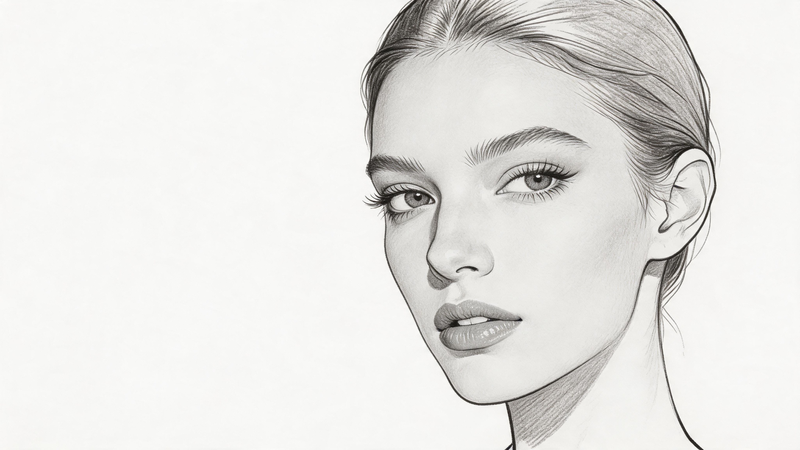
When Sketch Works Best
Choose a sketch when your brand voice is thoughtful, handmade, or premium-creative. Sketch avatars work well on LinkedIn for creative roles, portfolio sites, author accounts, and boutique shops where a drawn look signals taste. They also pair naturally with muted website palettes that would overpower a bright cartoon.
Create Cute Profile Pictures with ImagetoSketch
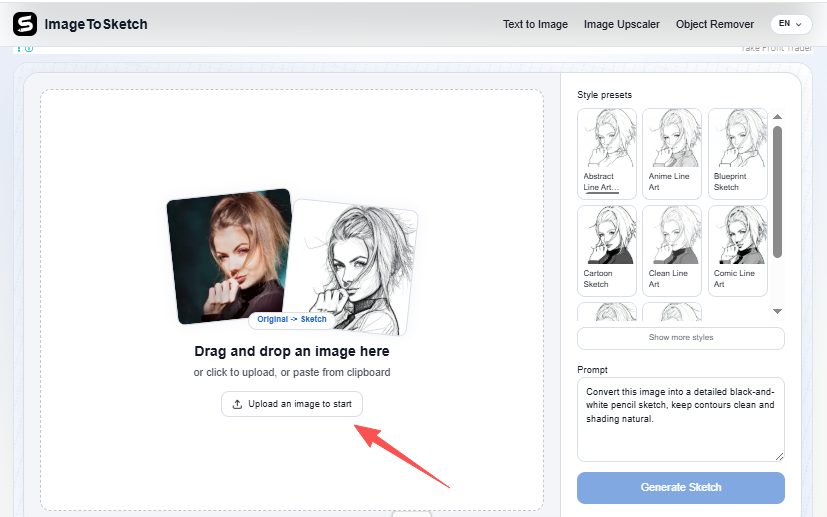
Step 1: Upload Your Image
Open the Image to Sketch website.
- Click “Upload an image to start”
- Select a file from your device
- Supported formats include: PNG, JPG, and WEBP
- You can upload one image at a time
💡 Tip: Choose a clear, high-resolution image for the best sketch results.
Step 2: Choose a Sketch Style
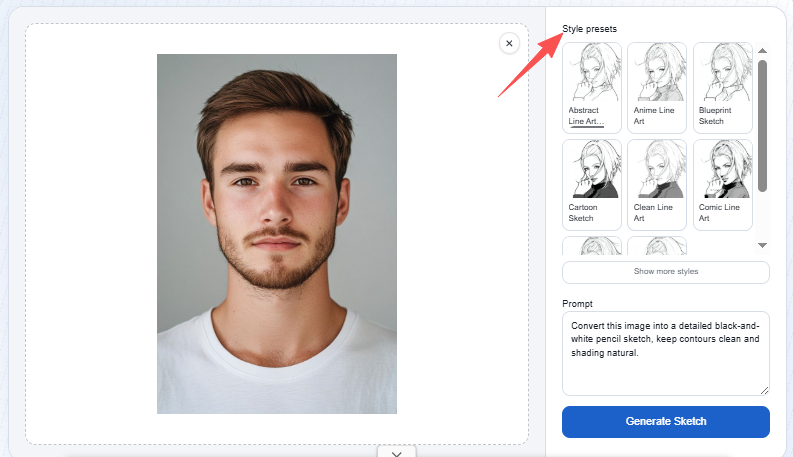
After uploading your image, go to the style panel on the right side.
You can select from 20+ sketch styles, including:
- Stick Drawing
- Technical Drawing
- Wireframe Sketch
- Rough Sketch
- Scribble Sketch
- Simple Sketch
- Pencil Sketch
- Portrait Line Art
- Quick Sketch
- And more
Each style offers a unique artistic effect, so feel free to explore different options.
Step 3: Add a Prompt (Optional)
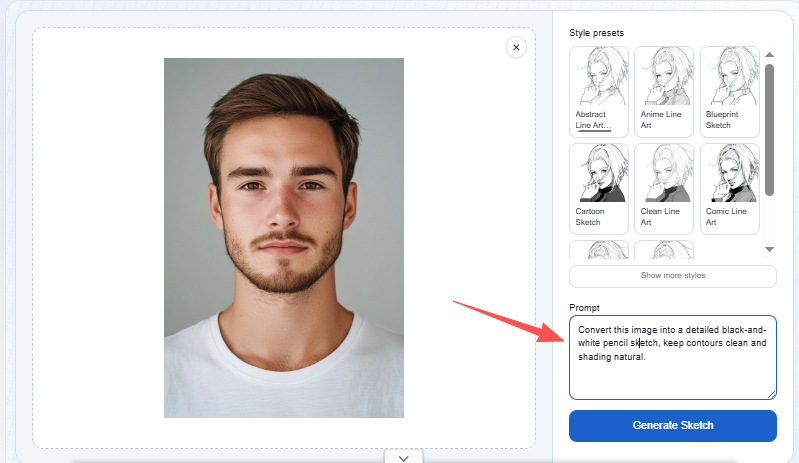
If you want more control over the final result, you can enter a prompt.
- Describe details such as style, mood, or subject emphasis
- Example: “clean portrait line art, minimal shading, high detail”
This step is optional but can help refine the output.
Step 4: Generate the Sketch
Once everything is set:
- Click “Generate Sketch”
- Wait a few seconds while the AI processes your image
The tool will automatically convert your photo into the selected sketch style.
Step 5: Download Your Sketch
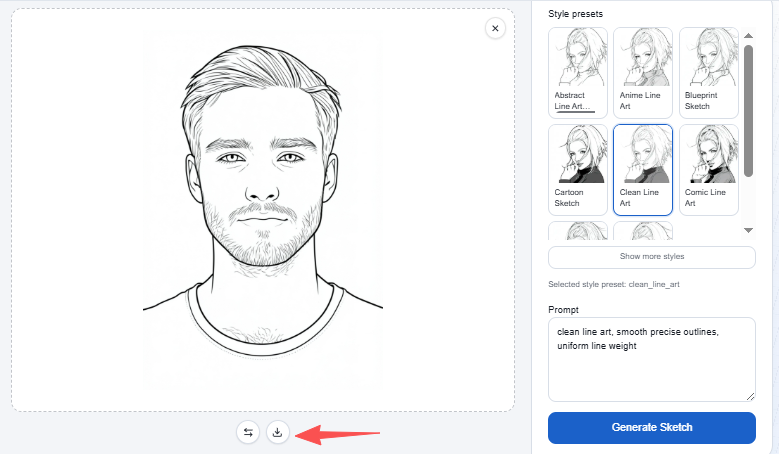
After generation is complete:
- Preview your sketch result
- Download the image to your device
Your sketch artwork is now ready to use!
Limitations to Expect
Low-contrast sketches can lose detail at very small sizes. Test the exported square crop on your target platform. If the eyes or jawline blur, try a higher-contrast source photo or a lighter sketch setting if the tool offers one.
Vheer: Flexible AI Portrait Styles Beyond Fixed Filters
Fixed cartoon and sketch filters are fast, but sometimes you want a stylized portrait that follows a specific art direction—anime-inspired, painterly, editorial, or aligned with a campaign mood board.
What Is Vheer?
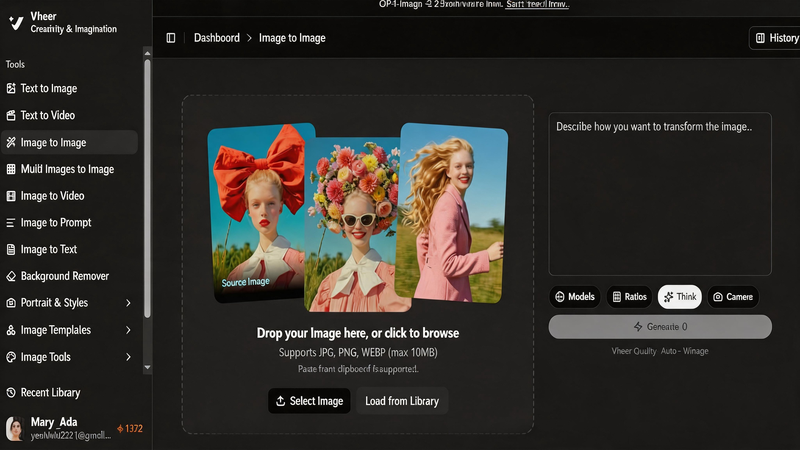
Vheer is an AI image platform that supports text to image generation and reference-based generation. For profile-style work, it helps creators produce stylized portraits from photos or prompts when preset filters feel too narrow. You can upload reference images, describe the look you want, and generate variations with different models. That flexibility matters when one cartoon filter is close but not quite right, or when you need avatars that match a broader visual system for content or ads.
When Vheer Works Best
Vheer fits creators who already know the direction—“softer anime portrait,” “editorial illustration lighting,” “match this color palette”—and want control beyond a single-click effect. It is also useful when you need multiple avatar variants for A/B testing on YouTube, TikTok, or newsletter branding without redrawing assets by hand.
Create Cute Profile Pictures with VheerAI
Step 1: Go to Vheer
Open your web browser and navigate to the Vheer Text to Image Generator page.
Once you’re on the page, you’ll see a text input box where you can begin creating your image.
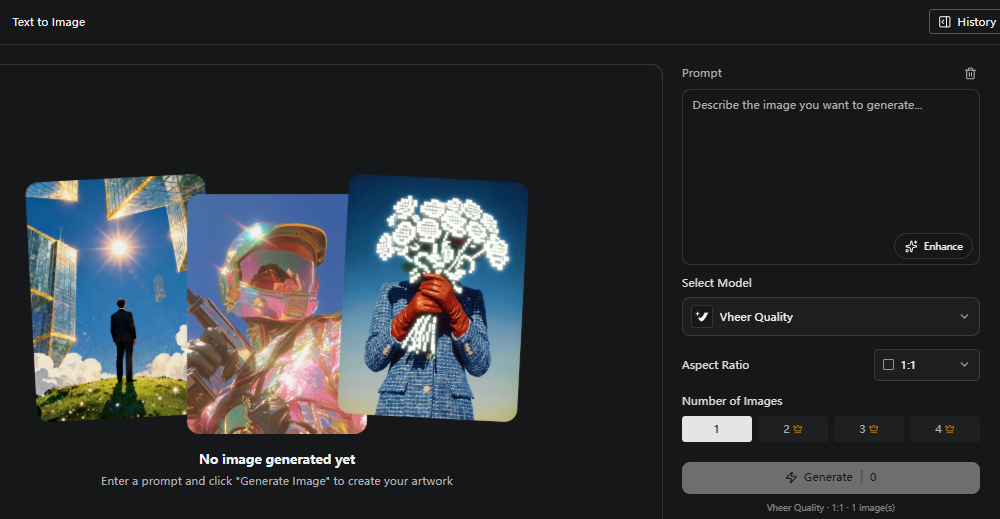
Step 2: Enter Your Prompt
In the text box, type a detailed description of the image you want to generate.
For example:
“game character, semi-realistic anime woman as game characters. highly detailed”
💡 Tip: The more specific your description, the better the AI can match your vision. Try including details like:
- Lighting (soft, dramatic, sunset)
- Style (realistic, cartoon, cinematic)
- Colors and mood
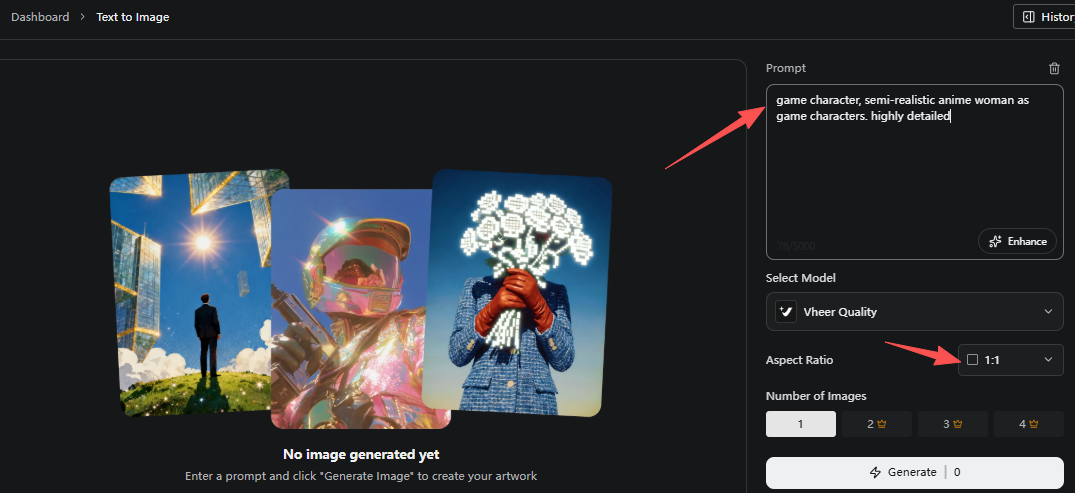
Step 3: Customize the Aspect Ratio
Choose the aspect ratio that fits your needs.
Common options include:
- 1:1 – Perfect for social media posts or profile images
- 16:9 – Ideal for landscapes, banners, or thumbnails
- 2:3 – Great for portrait-style images
Selecting the right ratio ensures your image is optimized for its intended use.
Step 4: Select the AI Model
Vheer offers multiple AI models to suit different creative needs. Choosing the right model can significantly impact the final result.
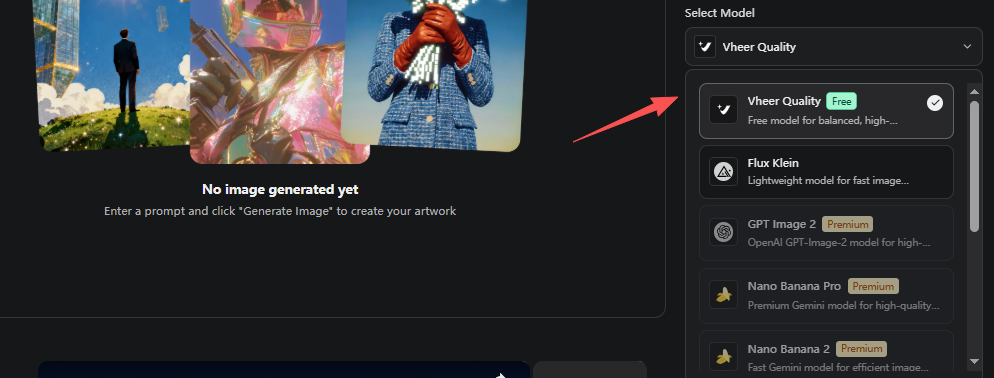
Available models include:
- Vheer Quality – Balanced performance with high-quality outputs
- Flux Klein – Lightweight model for faster generation
- GPT Image 2 – Advanced model for detailed and realistic images
- Nano Banana Pro – Enhanced quality with refined details
- Nano Banana 2 – Fast and efficient for everyday use
- SeeDream V4 – Great for creative and stylized visuals
- Minimax Image 01 – Optimized for consistent and clean results
Step 5: Generate the Image
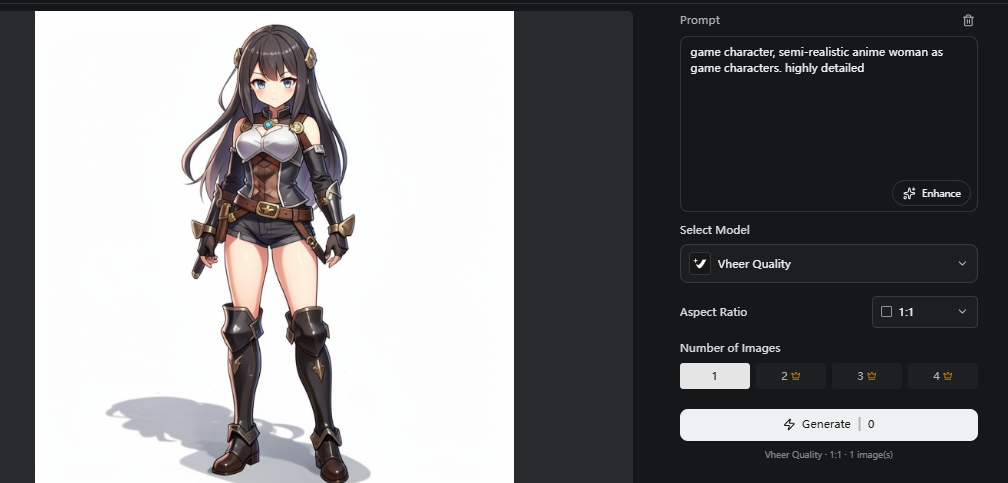
Once your prompt and settings are ready:
- Click the “Generate” button
- Wait a few seconds while the AI processes your request
The system will create an image based on your description.
Step 6: Regenerate or Download
After the image is generated:
- If you like the result, simply download it to your device
- If not, click “Generate” again to create a new variation
You can regenerate as many times as you like to refine your output.
Limitations to Expect
AI portrait generation takes more decisions than one-tap cartoon tools: model choice, prompt wording, and occasional rerolls. Plan a few minutes of experimentation. For a dead-simple, instant avatar, Image to Cartoon or Image to Sketch may still be faster.
How to Choose Without Overthinking
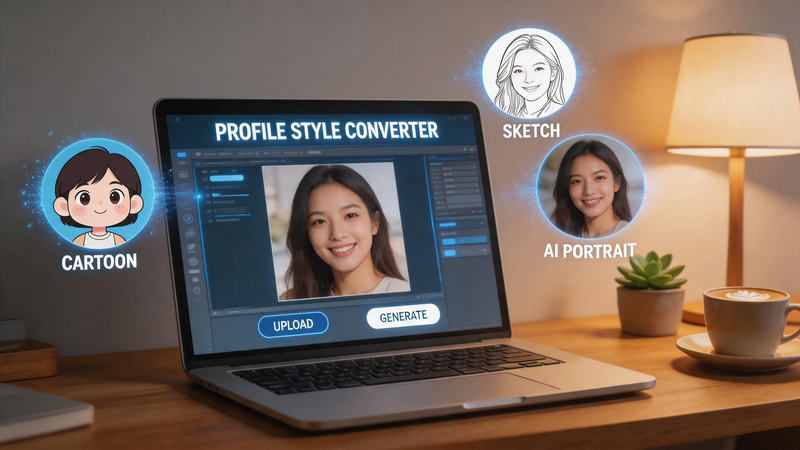
Use this short decision guide:
Pick Image to Cartoon if you want maximum friendliness, strong color, and instant legibility in gaming or casual communities.
Pick Image to Sketch if you want an artistic, slightly mature cute look that still feels personal on professional-creative profiles.
Pick Vheer if you need stylized portraits with more creative range, or avatars that must align with a defined brand or campaign aesthetic.
If you are torn, run the same well-lit selfie through all three. Compare them at actual avatar size, not full screen. The winner is whichever remains clearly “you” when shrunk.
Tips for Better Results on Any Tool
- Start with a simple photo. Front-facing, even lighting, minimal background clutter.
- Crop before stylizing. Center the face with space around the hairline; platforms will crop again.
- Keep expressions neutral or slightly smiling. Extreme poses confuse stylization models.
- Match style to context. Cute for a coffee shop brand differs from cute for a tech newsletter.
- Save the original. Trends change; you may want a new style on the same source photo later.
FAQ
Are these tools only for personal accounts?
No. Small businesses use cartoon mascots, sketch logos, and AI stylized portraits for shop icons, support avatars, and team pages.
Which style looks most professional?
Sketch and restrained AI portraits often feel more professional than bold cartoon styles, but industry norms vary. Match the platform culture you are joining.
Can I switch styles later?
Yes. Because these tools are independent, you can change direction anytime without redoing a multi-step workflow.
Do I need design skills?
No for Image to Cartoon and Image to Sketch—upload and export. Vheer rewards light experimentation with prompts or references but does not require traditional editing skills.
Wrapping Up
The best cute profile picture generators are not about finding one “winner” tool. Image to Cartoon, Image to Sketch, and Vheer each solve the same broad need—turn a photo into a stylized avatar—with different visual personalities. Cartoon reads playful, sketch reads artistic, and Vheer opens the door to custom AI portrait directions. Choose the style that still looks like you at thumbnail size, and your profile picture will do its job before anyone reads your bio.